Arkio 2.2.1 - Smarter AI renderings from every angle
 Hilmar Gunnarsson June 5, 2026
 Arkio 2.2.1 is a big step forward for the AI camera. This release gives you higher-quality AI renderings, a simpler rendering workflow, and a new way to guide AI results directly from your 3D scene using visual markups.
Instead of asking you to describe everything from scratch, Arkio can now understand more of what is already in front of the camera. You can start with a massing model, an imported Revit, Rhino or SketchUp scene, or a quick design option built directly in Arkio, then use the AI camera to turn that spatial context into a compelling image.
The result is a rendering workflow that feels more natural: you frame the view, add guidance when you want it, and let Arkio do more of the heavy lifting.
A major upgrade to AI render quality
With Arkio 2.2.1, we are switching AI renders to OpenAI GPT Image 2. This latest-generation image AI model gives Arkio a major leap in rendering quality, visual consistency and instruction following.
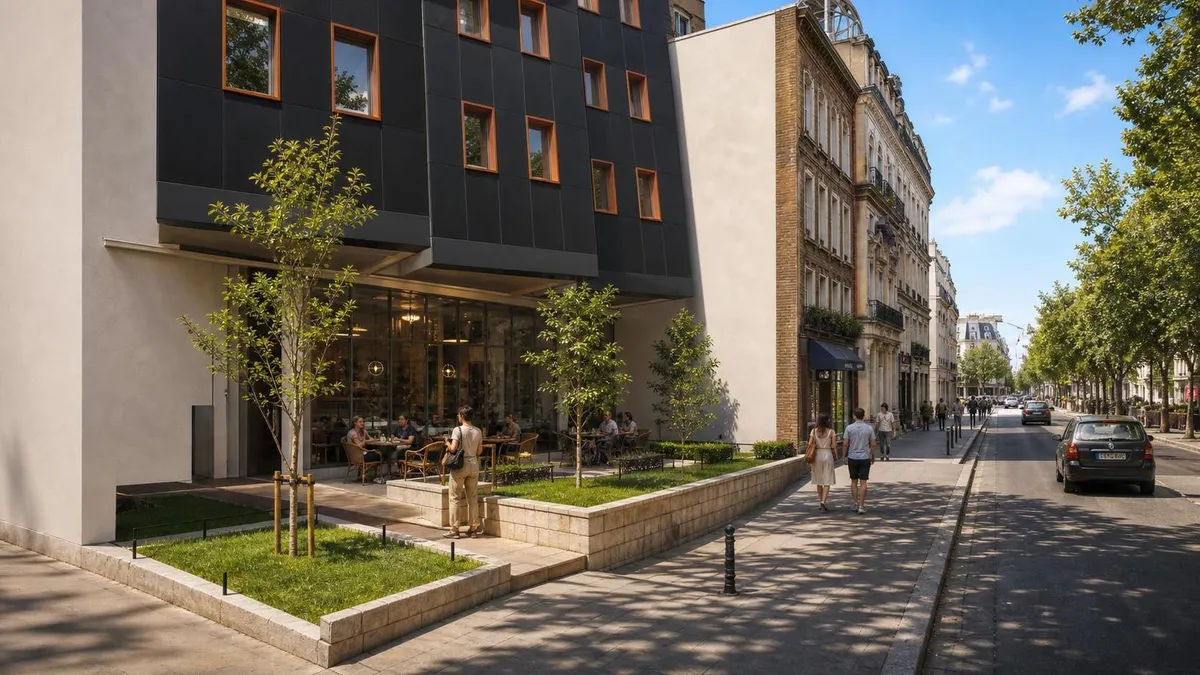
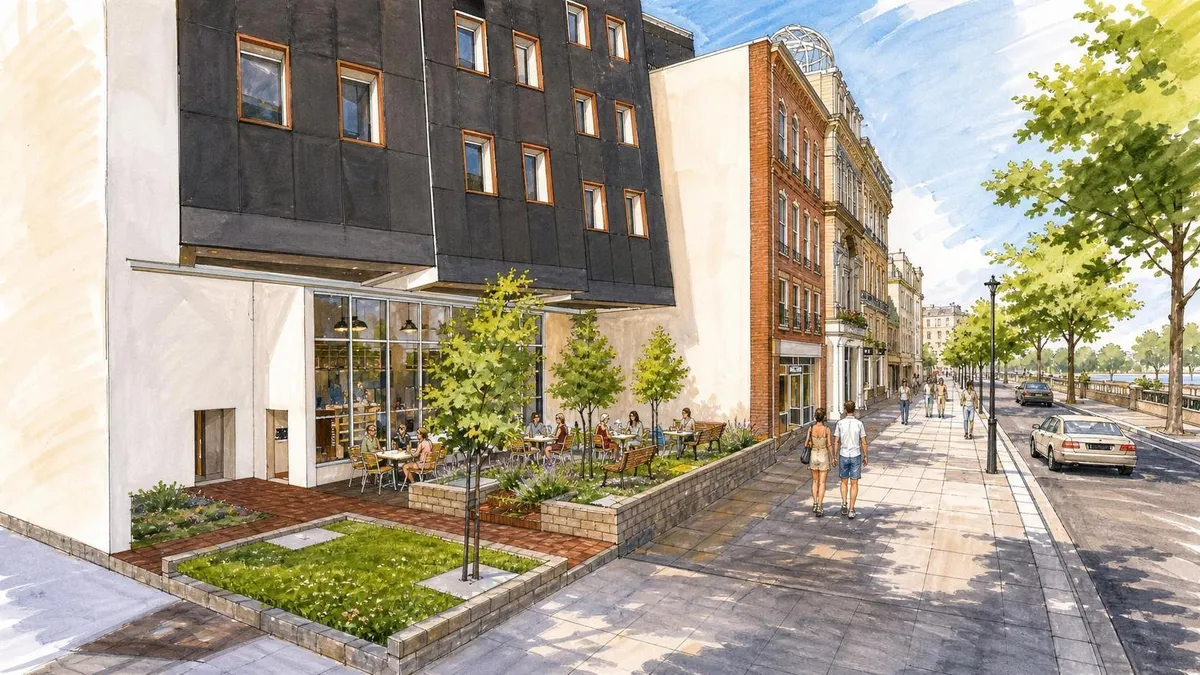
That matters because AI rendering is most useful when it gives you creative freedom without making you fight the tool. You can explore different architectural styles, lighting conditions, materials, seasons, times of day, landscapes, furniture layouts or levels of detail, while still keeping the output connected to the original 3D design.
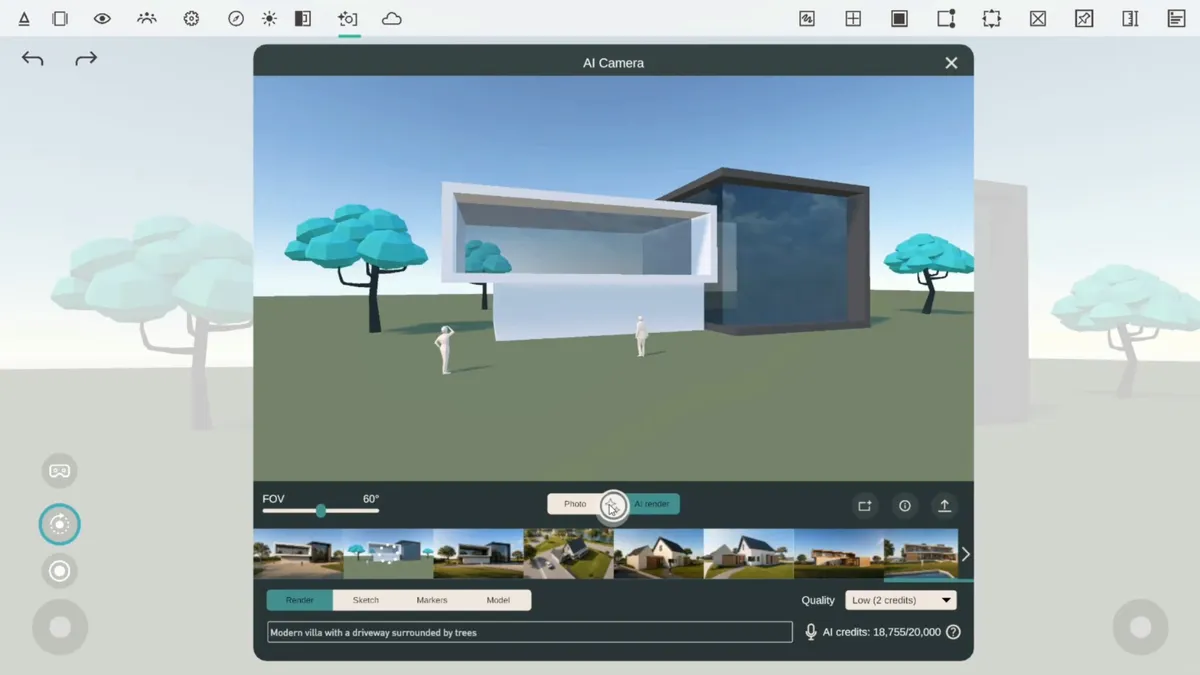
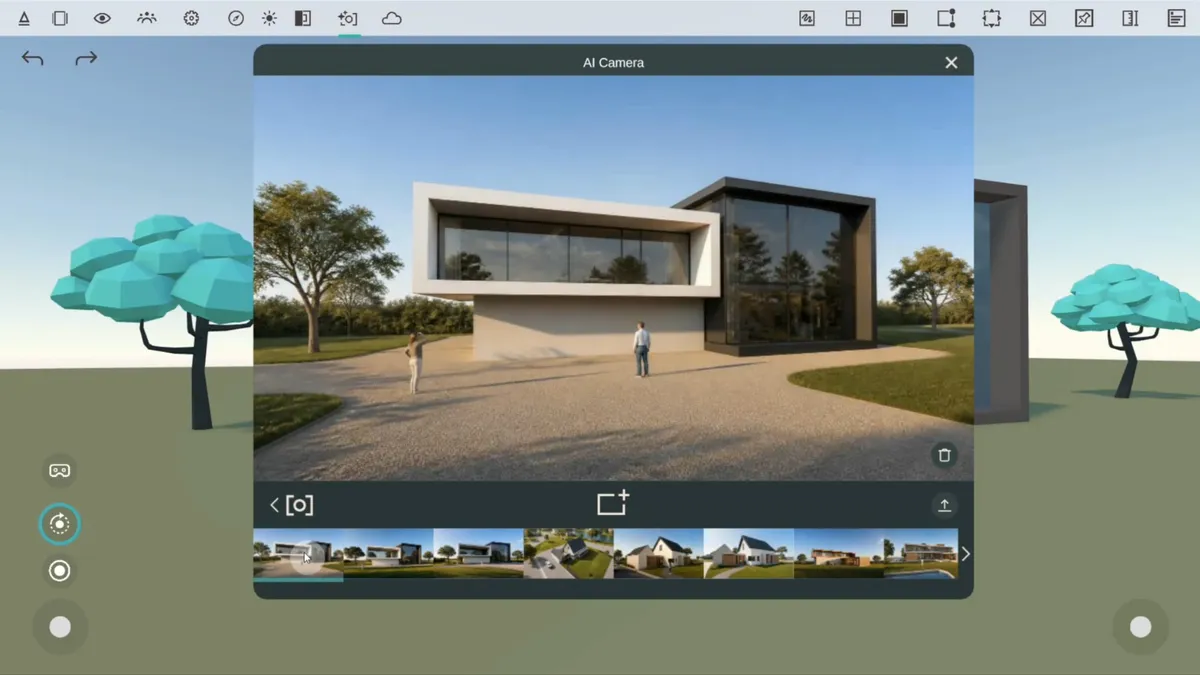
The new model is also much better at following directions. If you want a warm evening exterior, a bright Scandinavian interior, a winter concept image, a lush courtyard, a more industrial facade, or people using the space, you can describe that in plain language and get a result that is much closer to what you intended. You can also select from a variety of available visual styles.
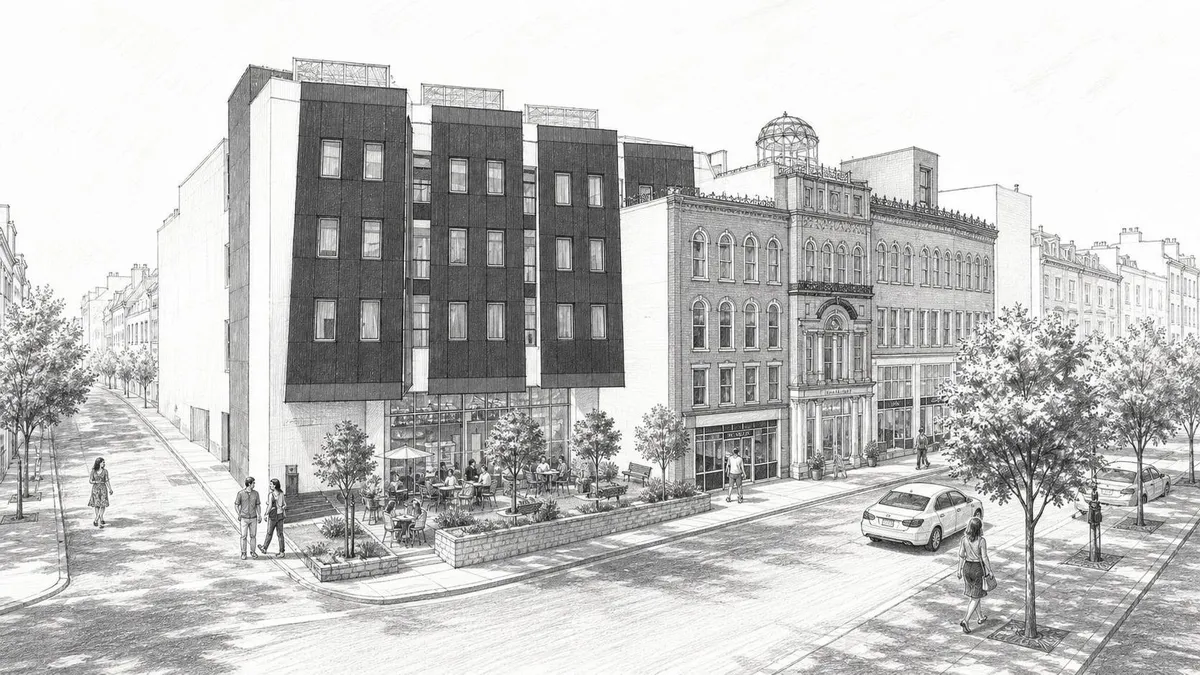
This also lets us simplify the AI camera experience. In earlier versions, you had to make more decisions before rendering, such as choosing between interior and exterior modes. In Arkio 2.2.1, the AI camera is intelligent enough to understand that context automatically in most cases, so you can spend less time setting up the render and more time exploring the design.
Context-aware renderings with less prompting
The AI camera now uses a context-aware rendering pipeline. Before the final image is generated, an AI model first analyzes the view from your Arkio scene and uses that understanding to guide the render.
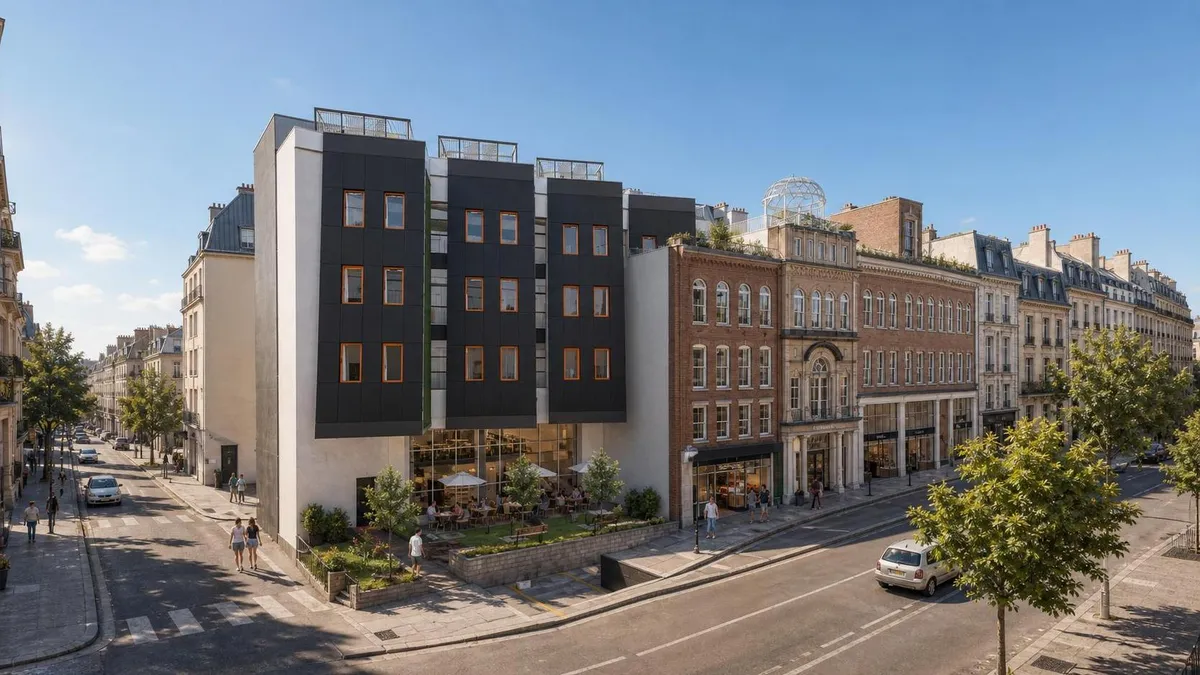
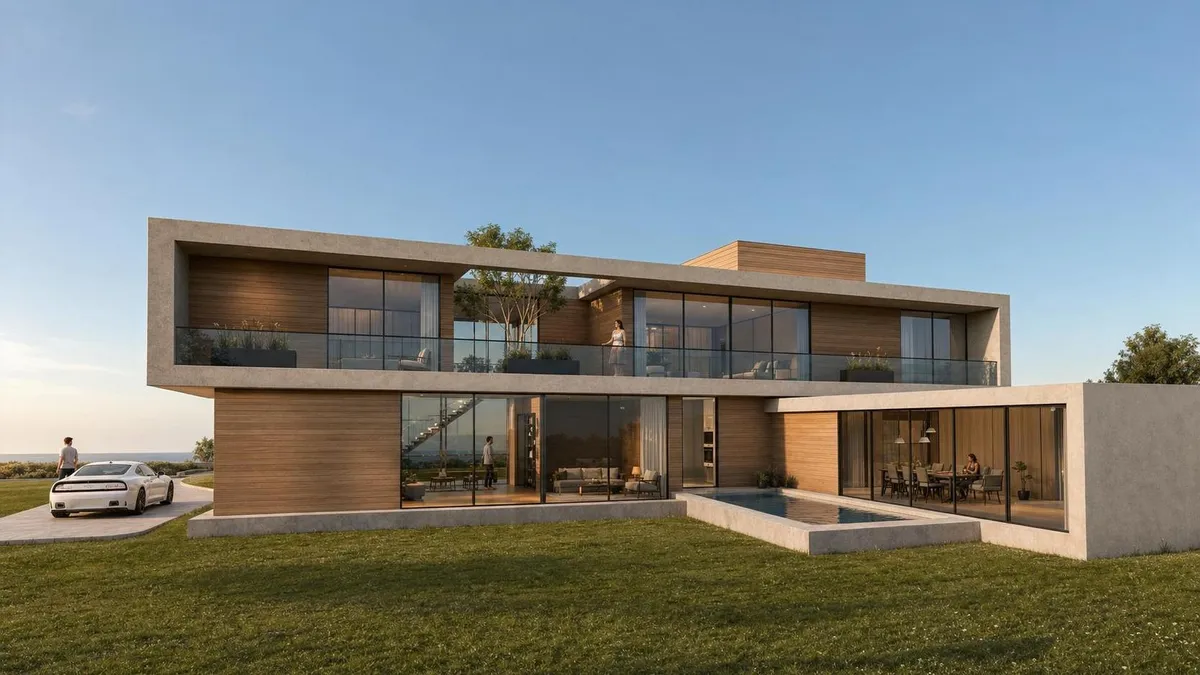
In practice, this means you often do not need to write a prompt at all. If the scene is clear, Arkio can understand whether it is looking at a house, an interior, a massing study, an outdoor space, a room layout or another architectural composition, then create a stronger rendering direction from that context. As an example, the below AI render was generated in one shot without a prompt using the Arkio AI camera and one of the Arkio sample scenes.
When you do want more control, you can still guide the result with a simple prompt. You can ask for a specific visual style, architectural language, setting, weather, season, lighting direction or level of realism. You can add people, vegetation, furniture, vehicles, materials, reflections, landscaping and atmosphere. You can also keep prompts short, because Arkio already has more spatial information to work with before the image is generated.
That balance is the important part. You can get good results quickly when you just want to explore, and you can get very specific when you know exactly what you want.
AI markups for more precise creative control
The biggest change in this release is not only that AI renders look better. It is that you can now direct them in a way that 2D image editing cannot really offer.
Because Arkio analyzes the 3D scene before rendering, you can place simple AI markups directly in the model and use them as spatial instructions. For example, you can add a red circle in your scene and ask Arkio to turn the red circle into a hot tub. You can add a blue square and ask for it to become a window. You can add a yellow cube beside a house and tell Arkio to turn the yellow cube into a garage.
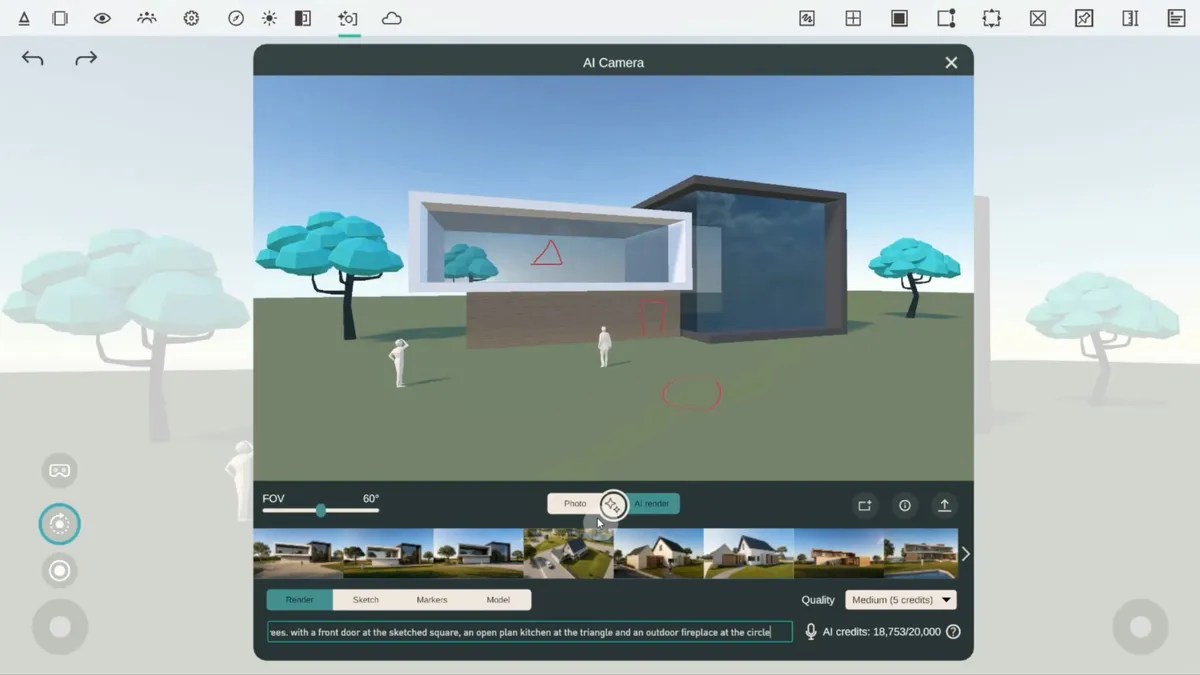
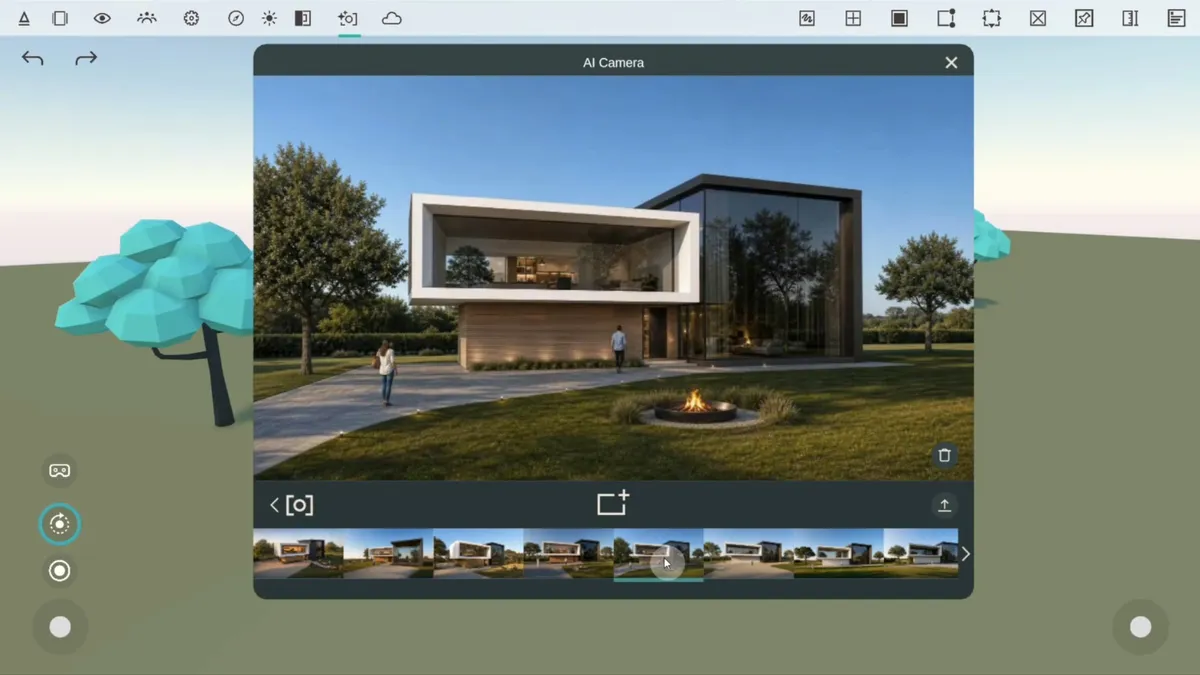
The difference is that the markup is not just a vague text instruction. It has a position, scale and camera relationship inside the 3D scene. If you place a yellow cube where the garage should be, Arkio can use that exact location and size as part of the rendering direction. That is far more precise than typing "add a garage to the right of the house" and hoping the AI places it where you meant.
You can also combine several markup instructions in one prompt. A single render can turn one shape into a garage, another into a window, another into a pool, and another into a landscape feature. Since those markups live in the Arkio scene, you can move the camera and generate more images from different angles while keeping the same design intent and visual style.
That opens up a much more flexible workflow for early design exploration. You can use simple Arkio geometry as a three-dimensional sketch for the AI renderer, then generate more polished views without locking yourself into a single 2D composition.
New AI render quality settings and credits
As part of the AI render upgrade, we are updating how many AI credits each render consumes. Low-quality renders now use 2 AI credits, medium-quality renders use 5 AI credits, and high-quality renders use 10 AI credits.
You can choose the setting that fits the moment. Low quality is useful when you want to test ideas quickly. Medium gives you a stronger balance between quality and credit use. High quality is there when you want the best output for presentations, client conversations or final concept images.
Anyone can try the new AI camera for free. The 14-day Arkio Pro trial includes 20 AI credits, so you can experiment with AI rendering before choosing a plan. A Pro license includes 500 AI credits, while an Enterprise license includes 1000 AI credits. If your team has multiple Enterprise licenses, those credits are pooled across your users. For example, five Enterprise licenses give your team a shared pool of 5000 AI credits.
More movable objects, Revit 2027 and workflow improvements
Arkio 2.2.1 also includes several important workflow updates beyond the AI camera.
The Revit plugin now supports Revit 2027, including movable objects, so you can keep using the latest Revit release with your Arkio workflow.
We have also removed the previous 1000 movable object export limit for Revit, Rhino and SketchUp plugins. This makes it possible to bring much larger sets of movable objects into Arkio, especially when working on high-performance PCs. As always, it is worth testing on the hardware you expect to use. Mobile XR devices like Meta Quest can typically handle around 1000-2000 movable objects depending on model complexity, while the PC version can handle much more.
Desktop navigation has been refined as well, with smoother zooming, teleporting, orbiting and looking around when reviewing or presenting projects on PC. Sticky notes can now be exported as BCF and CSV issues, making it easier to carry feedback from Arkio into coordination and project management workflows. Passthrough geometry cages are also visible again for passthrough-painted primitive shapes, which helps when aligning or overtracing existing real-world geometry.
The release also includes fixes for primitive shape visibility, Revit north rotation in bi-directional workflows, layer and pinning issues in some Rhino movable-object models, and general import/export reliability.
You can read the full Arkio 2.2.1 changelog here.
Try the new AI camera
Arkio 2.2.1 makes it easier to move from a 3D idea to a high-quality image, whether you are exploring options on your own, preparing visuals for a client, or reviewing design changes with a team.
We are excited to see what you create with context-aware AI renders, AI markups and the new image quality available in this release. Download Arkio, start a free Pro trial, and give the new AI camera a try.